Photos
Most listing tools treat photos as an attachment: upload them into a form, and they disappear into the listing. letsList treats them as part of your inventory. Every photo belongs to an item, stays in your library after the listing ends, can be found again by what's in it, and can be edited without losing the original. Getting them onto eBay is automatic.
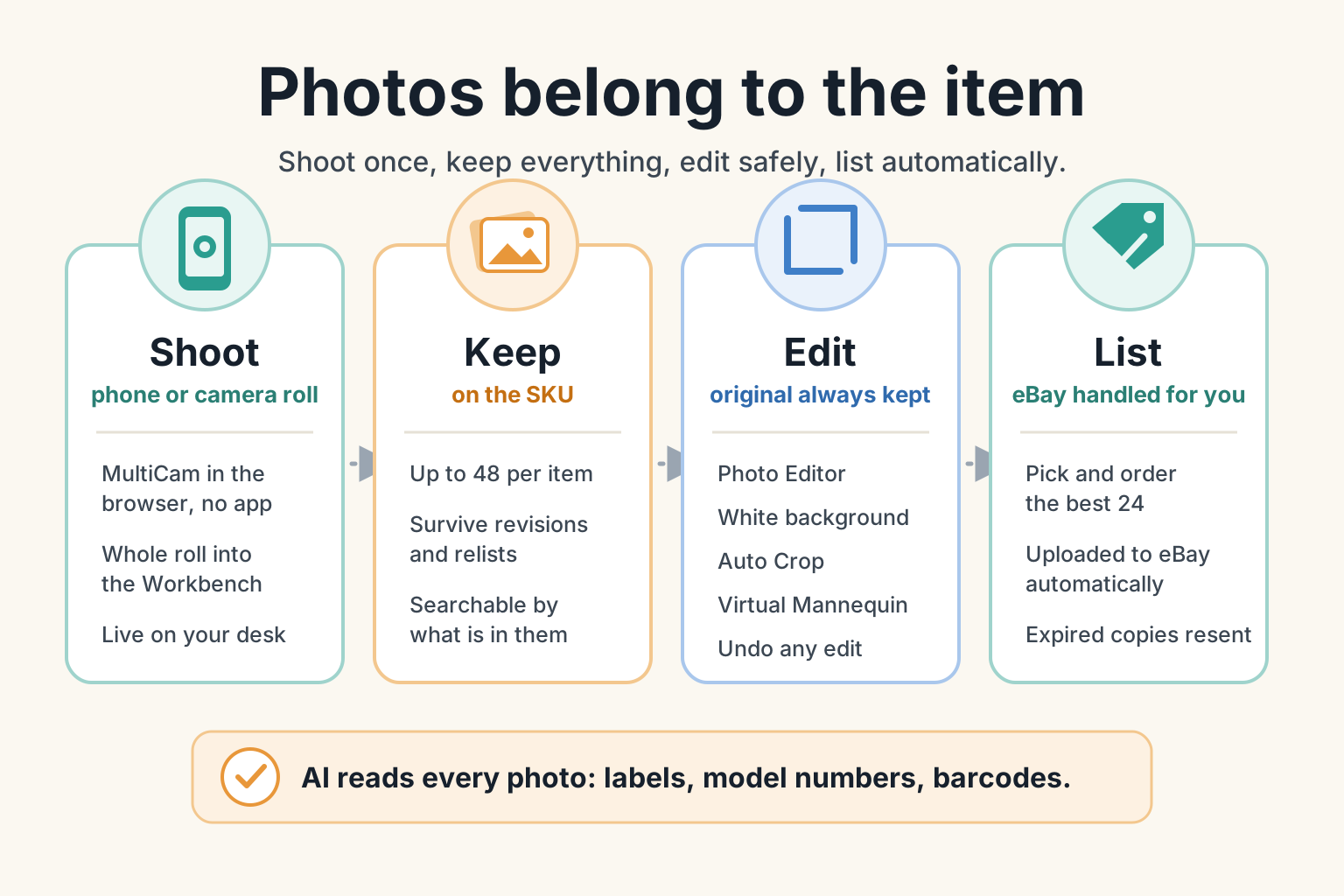
Photos belong to the item, not the listing
A photo lives on a , the item you own. A picks which of the item's photos buyers see, and in what order. That one rule is behind most of what makes letsList different:
- Nothing is lost when a listing changes. Revise, end, or relist, and the item still has every photo you took, including the ones you didn't use.
- Take more than you list. An item can hold up to 48 photos, twice eBay's limit, so you can shoot freely and choose the best 24 later.
- Your old eBay listings come home. When you adopt an existing listing, letsList copies its pictures into your library and puts them on the new SKU.
Before a photo is on an item, it waits in the as one of your . Where a photo lives explains how photos move between the Workbench, the SKU and the listing, and what removing or deleting one really does.
Getting photos in
MultiCam on your phone
A real camera inside the browser — no app to install. Shoot a whole item in one go with square or 4:3 framing guides, pinch to zoom, and a flashlight.
A whole camera roll at once
Drop up to 400 photos into the Workbench for the haul you're working on, then sort them into items when you sit down.
Straight onto an item
Add photos on the SKU page or in the listing editor and they go directly onto that item. In the editor, they're also added to the listing.
Photograph one item, add a note, and move on. Photos land on a new SKU and AI writes the draft while you shoot the next one.
letsList accepts JPEG, PNG and WebP up to 32 MB each, and shrinks large photos before uploading so a slow connection doesn't hold you up. Photos keep the order you took them in, even when they upload in parallel. iPhones normally convert HEIC to JPEG when you pick photos; if a HEIC file on a computer is refused, export it as JPEG first.
Phone and desktop, in sync
Shoot on your phone and the photos appear on your computer a few seconds later, with no refresh and no emailing yourself. Every device also shares your place: the haul and item you're working on are the same on your phone and your desk.
- On the Workbench and in NonStop List, the Scan to continue on your phone card shows a QR code that opens the same workspace on your phone, camera ready.
- On an item with no photos yet, Copy link for phone does the same for that one item.
- If several people sign in to the same eBay account, everyone sees the same photos, edits and drafts, live. One person can shoot while another lists.
Editing that keeps your originals
Right-click a photo on a computer, or long-press it on a phone, to see its tools. Most of them work on a whole selection at once.
Photo Editor
A full editor built in: free or square crop, rotate, brightness and color, arrows and text, and redaction for anything you don't want shown.
Remove Background
Puts the item on a clean white background, the way eBay buyers expect. Runs in the background on up to 24 photos at a time.
Auto Crop
AI already knows where the item sits in each photo, so Auto Crop trims to it with a little breathing room.
Virtual Mannequin
For clothing: select 2 to 8 photos of a garment and get a new image of it worn, front and back. Your own photos stay as they are.
Split Photo
Shot several items in one frame? Split Photo finds each one and makes a separate photo of it, ready to file onto its own SKU.
Rotate
Turn one photo or a whole batch left or right.
An edit never overwrites your photo. letsList keeps the original, puts the edited version in its place, and updates any draft that was using it. Undo edit brings the previous version back, and the 's Show Originals shows every original you've edited.
AI reads every photo
As each photo finishes uploading, AI looks at it and writes down what it sees: what the item is, a short title, the text printed on labels and tags, and any UPC, EAN, ISBN, model or part number. A UPC, EAN or ISBN is only kept if its check digit is valid.
- It makes photos searchable. Search the Gallery for “Pyrex” or a model number and find the photo, even if you never typed anything.
- It feeds the listing. When AI writes a draft, it looks at the first four photos directly and uses what it read from the rest.
- Read Barcode scans the full-size original for an exact barcode. A barcode it reads outranks one the AI guessed.
- Google Lens opens the photo in Google Lens when you want to know what something is.
Find any photo again
The is your whole photo library, grouped by item. It shows the haul you're working on, or every haul when none is picked; from there, search, narrow to a single SKU, or show only photos that aren't on an item yet. Open any photo to see its details, including the camera and the date it was taken, or download the full-size originals.
Deleted photos go to the Trash for 30 days. Restoring one brings it back to its haul as a loose photo, not onto its old item, because that item's listing may have changed since.
Getting photos onto eBay
You never upload a photo to eBay yourself. When a photo goes into a draft, letsList sends it to eBay's picture service in the background. eBay allows 24 photos per listing, and the first one is the main photo buyers see in search.
If a draft sits unpublished for a while, eBay quietly throws away its copies of the draft's pictures. Before a draft is published or checked with eBay, letsList checks each picture and re-sends any that eBay has dropped, from the original it kept.
Your location stays private
Phone photos can carry the GPS location where they were taken. letsList removes it on upload and never stores it. The camera model and the time the photo was taken are kept, because they help put a camera roll in order.
Which tools are where
Each screen shows the photo tools that fit the job you're doing there. The Workbench and the Gallery have the full set.
| Everything for sorting: create a SKU or an AI draft from a selection, attach to a SKU, move or copy to another haul, Photo Editor, rotate, Auto Crop, Split Photo, Remove Background, Virtual Mannequin, Read Barcode, Photo Details, delete. | |
| Search and clean-up: open a photo’s SKU or show only its photos, take a loose photo to the Workbench, Remove from SKU, move or copy to another haul, Re-run Recognition, Undo an edit, Photo Details, and the Trash. Photo editing lives in the Workbench and on the SKU page. | |
| The SKU page | The item’s own photo set: reorder, make main photo, Remove from SKU, rotate, Auto Crop, Remove Background, Virtual Mannequin, Read Barcode, delete. |
| The listing editor | What buyers see: pick and order up to 24, make main photo, remove from the listing, add back from “Other photos for this SKU,” Photo Editor, Auto Crop, Remove Background, Virtual Mannequin. |
How high-volume sellers log hauls, batch photos, create SKUs, and clear loose inventory work one haul at a time.