Sources & the
The is the high-volume way to list: batch the photo-taking, drop the whole camera roll into letsList, then turn into and without losing which deal they came from.
Start here if source → SKU → draft → live listing is new to you.
You don't have to use sources
If you're brand new to letsList, you can skip this entire page. Open and click Create New Draft — and you’re off. Everything else this page describes is something you can grow into when you’re ready.
When you create your first listing, letsList puts it in a bucket called your source. If you never think about sources again, you'll be fine — Default just keeps holding everything you create.
Casual sellers, people listing personal stuff from around the house, anyone who isn't running this as a business — Default is your home and you don't need to graduate. Cost tracking and source-scoped bulk work are opt-in tools for sellers who want them. If you don't, they stay out of the way.
Four ways to make a listing
letsList has a few listing paths because sellers work at different levels of volume. The Workbench is the most mature path, not the first one you need to learn.
Manual draft
Start from Listings, create a draft, and fill it out much like an eBay form. AI can help, but it is optional.
A guided single-item flow. AI walks the item toward a draft, then you finish in the editor.
A fast serial phone workflow: feed photos and notes for one item, move to the next while AI works in the background.
A batch workflow: take a whole camera roll first, then sort photos into SKUs and kick off draft work from the pile.
If you are listing one item in front of you, or may be the right tool. If you have a pile of clothing, an estate-sale table, or a folder of photos from a shoot, the is the better mental model.
What's a source, in plain terms?
A is a deal. A batch of inventory you got at one time, from one place.
- The estate sale you bought out in March.
- The garage cleanout from the storage unit you inherited.
- The book collection you picked up at the library auction.
- Lot 47 from the bankruptcy auction.
If you're a serious reseller, your inventory naturally arrives in waves like this. Every time you buy a fresh batch, you create a source for it. From that point on, all the items from that haul live under that source.
That's it. A source is a label that says “these items came in together.”
What a source is not
A is not the item itself, and it is not the eBay listing. It is the container around the inventory batch. The items inside that container are , and the eBay work created from those SKUs becomes and .
The deal, haul, consignor, auction lot, or Default bucket.
The physical item you own and track.
The editable listing work you review before publishing.
Keeping those separate is what lets letsList answer different questions cleanly: where did it come from, what is the item, what listing work is unfinished, and what is already live on eBay?
The is a sorting table for camera rolls
High-volume sellers often separate photo-taking from listing. They photograph a pile of items first, then sit down later to turn that camera roll into inventory. The Workbench is built around that habit.
- Upload or capture a batch of photos for the selected source.
- Select the photos that belong to one physical item.
- Attach them to an existing SKU or create a new SKU from them.
- Start an AI draft from the selected photos when you are ready for listing work.
- Or work SKU-first: type the items from a receipt or inventory list, then attach photos as you take them.
Photos are first-class here. A photo is not only something you attach to a listing; it can also be the beginning of the SKU and draft. That is the key design decision: the Workbench lets you work photo-first, SKU-first, or somewhere in between.
The clear your plate metaphor is about this intake work. A loose photo is useless until it has a home. When the loose-photo pile is empty, every captured photo in that source has either been filed into an item, archived, or deleted.
Sources keep each sorting table separate
When you have multiple sources, you don't have one Workbench. You have one Workbench view per source. Switching sources changes the photo pile and the SKU list to that deal.
Why this matters: real reselling work is rarely “process this one batch start to finish before touching the next one.” It's months of parallel work across different deals.
Imagine you're processing two deals at once:
Without sources, those two deals' photo rolls and item lists are mixed together in one giant pile. You're trying to attach a carburetor photo to the right SKU and you're scrolling past dining chairs to find it. The signal gets noisy because the pile is always full of stuff from a different deal.
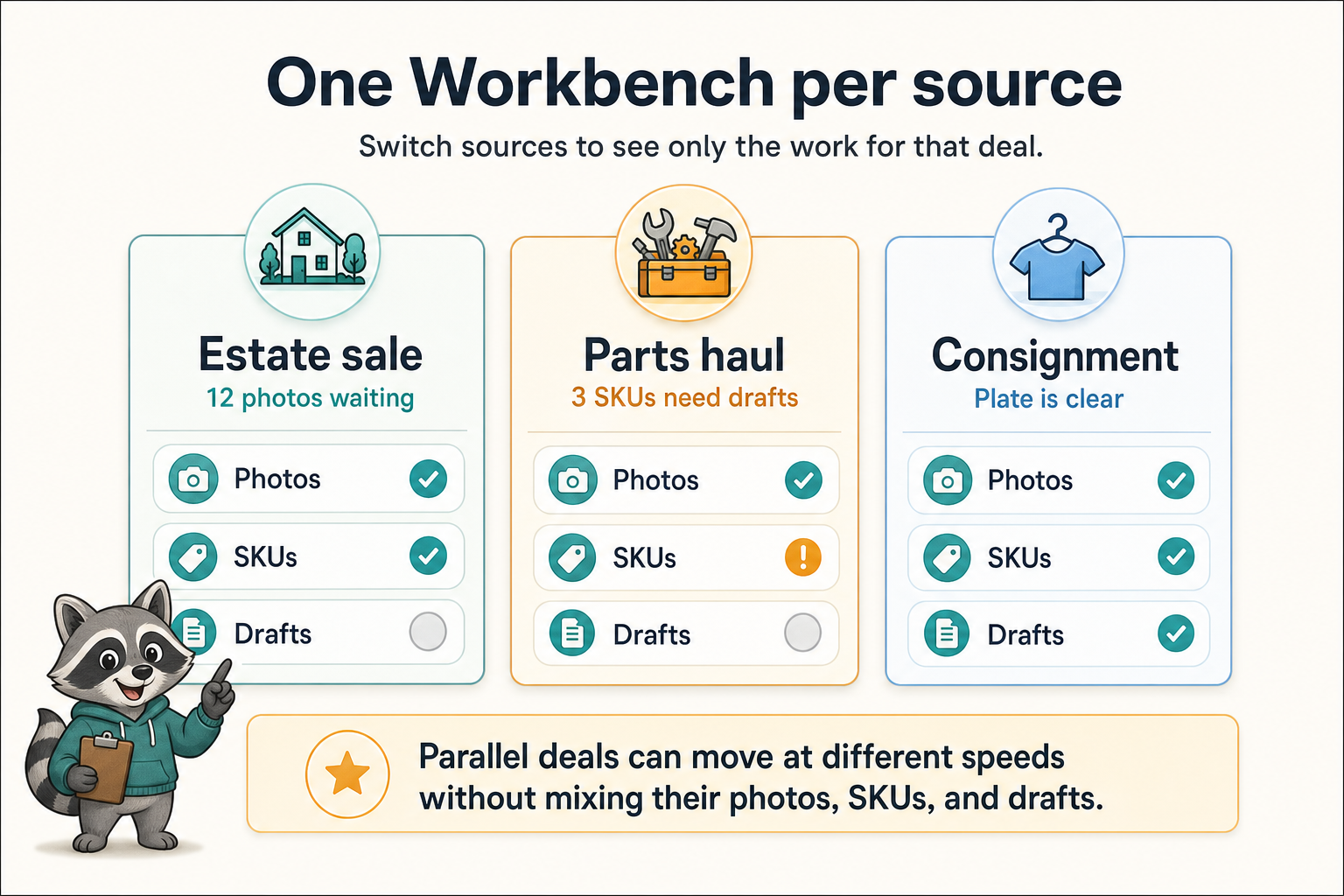
With sources, you flip between them:
- Switch to Estate sale — you see only the estate-sale photos waiting to be attached to SKUs. Knock out an hour of cataloging. The loose-photo pile clears for that deal.
- Switch to Motorcycle parts — you see only the motorcycle stuff. Pick up where you left off. Its intake pile clears separately.
Two parallel intake piles instead of one impossible one. The two deals can run on totally different timelines — maybe the estate sale wraps up in a month and the motorcycle haul takes six — and neither blocks the other.
This is the part that takes most people a while to figure out. It looks like an organizational nicety from the outside. It's actually a focus system for batch processing.
When to graduate from Default
Some signs that it's time to start using sources:
- You bought inventory in a batch and you can name the deal.
- You're juggling multiple types of inventory at once and they need different kinds of attention.
- You want acquisition costs and inventory provenance kept separate by haul.
- You catch yourself looking at a SKU and asking “wait, where did this come from again?”
Some signs you don't need to bother:
- You're listing personal stuff from your own house.
- Everything you list is one-offs, not batches.
- You're a casual seller, not running this as a business.
- You don't care about separating acquisition costs or provenance by deal.
If those describe you, stay in Default. It's fine. We mean it.
A simple Workbench workflow
If you are ready for the high-volume path, keep the workflow boring: choose the batch, dump in the photos, and sort the roll into items.
- Create a source when a batch arrives, before you start cataloging the items.
- Switch to that source in the source picker so new work lands in the right place.
- Take photos in a batch, then upload the whole camera roll to the Workbench.
- Group the photos for one item and attach them to a SKU, or create a new SKU from that selection.
- Use AI draft creation when you want letsList to start listing work from those photos.
- When there are no loose photos left, that source's intake plate is clear.
The SKU manager is the other side of the same table: it shows unpublished SKUs for the selected source, so you can type items first and attach photos later. Published items move out of the Workbench flow and remain available in .
Common source mistakes
- Making one source per item. Use a source for the deal or batch, not for every SKU.
- Importing a whole eBay account into Default by accident. If those listings belong to different consignors or hauls, create the sources first and adopt into the right one.
- Expecting the source to change buyer-facing eBay data. Sources are letsList organization. Buyers do not see them.
- Using too many nearly identical sources. If two purchases are part of the same deal and you want one intake pile, keep them together.
Existing eBay inventory enters through adoption
A listing that exists on eBay without a letsList SKU appears as . creates the SKU and puts it in the source you currently have selected, without interrupting the eBay listing.
If you are organizing old inventory by deal or consignor, create and select each source before adopting its listings. Adoption is the one-time inventory step; is the repeatable editing step afterward.
A complete guide to Legacy listings, source selection, adoption, and revision drafts.
How sources show up across letsList
Once you start using sources, they appear in:
- — filters loose photos and unpublished SKU work to the selected source.
- The source picker in the top bar — fast switch between deals.
- Cost tracking (advanced, optional) — total costs and per-item allocations are scoped to a source.
- Bulk operations — actions can target an entire source.
You don't have to learn all of these to get value. The Workbench by itself, with one or two sources, is probably 80% of the benefit.